
The Ultimate Guide: How to Setup Philips Smart TV
Are you ready to transform your viewing experience with a cutting-edge Philips Smart TV? Welcome to the ultimate guide that will walk you through everything you need to know about setting up your new entertainment hub. Today’s smart TVs, particularly those from Philips, are equipped with a plethora of advanced features designed to elevate your home entertainment. From vibrant display quality to seamless connectivity options, Philips offers a diverse range of benefits that cater to cinephiles, gamers, and tech enthusiasts alike.
Before diving into the setup process, it’s crucial to understand the key features and initial requirements. Philips Smart TVs are renowned for their stunning picture clarity, intuitive user interfaces, and compatibility with a wide array of home entertainment peripherals. To ensure a smooth setup, gather essential accessories like HDMI cables and a stable Wi-Fi connection, and consider the available space to accommodate your TV’s size.
In this comprehensive guide, we will walk you through the step-by-step process of unboxing, setting up, and optimizing your Philips Smart TV for unparalleled entertainment. Explore how to seamlessly connect your TV to wireless networks, configure your device with preferred settings, and integrate it with various devices like sound systems and gaming consoles. As technology can sometimes throw a curveball, we’ll also provide practical solutions to common setup challenges and expert tips for fine-tuning picture and sound settings to your liking.
Whether you’re encountering connectivity issues or simply want to enhance your viewing pleasure, this guide is packed with insightful advice to ensure your Philips Smart TV operates at peak performance. Stay ahead with ongoing maintenance tips and software updates to keep your device running smoothly.
Dive into the world of Philips Smart TV with confidence, and transform your living room into a cinematic haven. For additional insights and advanced tips, check out [Philips support](https://www.philips.com/support) to maximize your smart TV experience.
Understanding Your Philips Smart TV: Features and Initial Setup Requirements
Overview of Philips Smart TV Features and Benefits
Philips Smart TVs are designed to provide a sophisticated and immersive viewing experience that combines cutting-edge technology with user-friendly interfaces. Here are some key features that highlight why these TVs are an excellent choice:
- Ambilight Technology: Unique to Philips, Ambilight projects light onto the walls behind the TV, adjusting to the colors on-screen, which enhances viewing experience and reduces eye strain. 🌈
- Smart TV Platform: Enjoy a vast range of apps such as Netflix, YouTube, and Disney+ seamlessly integrated into the interface.
- 4K Ultra HD Resolution: Experience crystal-clear picture quality with stunning clarity and detail.
- HDR Support: High Dynamic Range (HDR) provides more depth in contrast, vibrant colors, and true-to-life images.
- Voice Control: Use voice commands through built-in Google Assistant or Alexa integration for hands-free operation. 🗣️
- Chromecast Built-in: Easily cast your favorite movies, music, and apps from your phone to your TV. 📱➡️📺
- Integrated Sound System: Premium audio technology, often featuring Dolby Atmos, ensuring exceptional sound quality.
By understanding these features, users can harness the full potential of their Philips Smart TV, delivering an unparalleled home entertainment experience.
Key Requirements for Setting Up a Philips Smart TV
Setting up your Philips Smart TV properly is crucial to maximizing its capabilities. Here are the essential requirements you need to consider:
| Requirement | Description |
|---|---|
| Power Source | Ensure there’s an accessible power outlet near the TV placement area. |
| Internet Connection | A stable Wi-Fi network is necessary to access smart features and streaming services. |
| Space | Allocate enough space for ventilation to prevent overheating and accommodate Ambilight effects. |
| Television Stand or Mount | Choose between a TV stand or mounting the TV on the wall for an optimal viewing angle and space utilization. |
| Remote Control and Batteries | Ensure your remote is functional, including new batteries for uninterrupted use. |
These requirements are fundamental to ensuring a smooth setup process, facilitating ease of use and longevity of the device.
Compatibility Considerations with Home Entertainment Systems
When integrating a Philips Smart TV into your existing home entertainment setup, compatibility is key for maximizing performance and enjoyment. Here are some important considerations:
- Sound Systems: Philips Smart TVs are compatible with most soundbars and external audio systems. Check for HDMI ARC/eARC or optical audio ports for seamless connectivity.
- Gaming Consoles: For an enhanced gaming experience, use HDMI ports and ensure your console settings match the TV’s capabilities. Look for features like low input lag and Game Mode for optimal performance. 🕹️
- Streaming Devices: Although Philips TVs have streaming apps built-in, they can also support external devices like Roku or Amazon Fire Stick, offering more versatility.
- Blu-ray/DVD Players: Ensure you connect these devices via the available HDMI inputs for superior video and audio quality.
Each of these considerations ensures that you are leveraging your Philips Smart TV’s full potential, enriching your home’s entertainment system with effortless integration.
For further information on Philips Smart TV features, requirements, and more, visit [Philips support page](https://www.philips.com/c-m-so/televisions). 💡
💡 Understanding these features and considerations is essential to effectively setting up and utilizing your Philips Smart TV to its fullest capacity. By ensuring compatibility with other devices and meeting the initial setup requirements, you can enjoy a seamless and gratifying viewing experience.
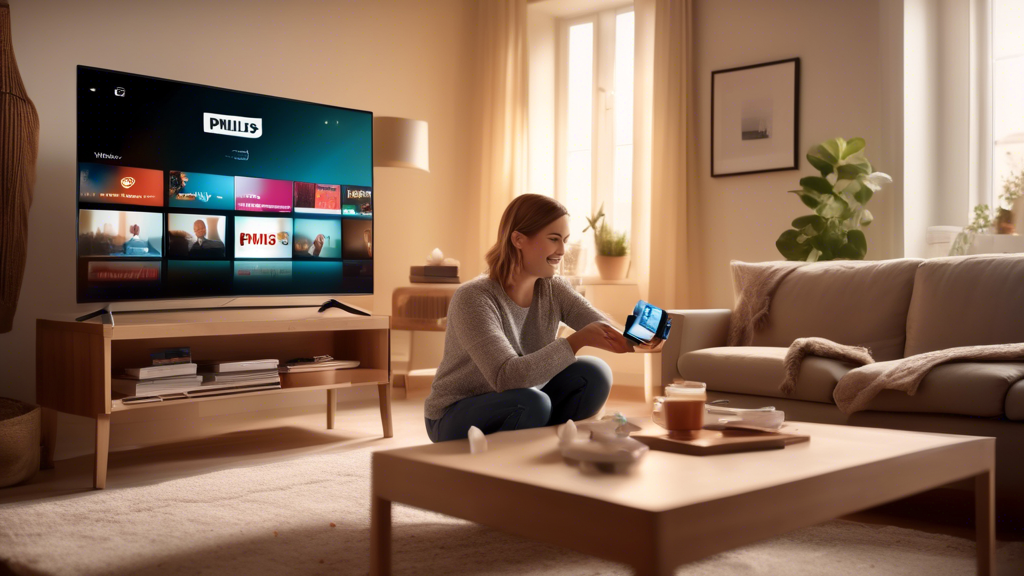
Step-by-Step Guide to Setting Up Your Philips Smart TV
Unboxing and Physical Setup
When you first receive your Philips Smart TV, unboxing it properly is crucial. Follow these steps to get started:
| Step | Description | Emoji |
|---|---|---|
| 1 | Carefully open the box and remove the TV. Ensure you have enough space and a clear, flat surface to work on. | 📦 |
| 2 | Locate the stand or wall mount and securely attach it to the TV according to the instructions provided. | 🔧 |
| 3 | Position the TV in your desired location, ensuring there’s a power outlet nearby. | 📍 |
| 4 | Connect the TV’s power cord and any other necessary cables such as HDMI from your media devices. | 🔌 |
For more detailed instructions on setting up specific models, check the Philips support page.
Connecting to Wi-Fi and Other Devices
Establishing a solid connection is essential for maximizing the capabilities of your Philips Smart TV. Here’s how to connect it to Wi-Fi and other external devices:
- Wi-Fi Connection:
- On your Philips Smart TV remote, press the Home button to access the main menu.
- Select Settings and navigate to Network.
- Choose Wireless and select your home Wi-Fi network from the list.
- Enter your network password using the on-screen keyboard and confirm to connect.
🌐
- Connecting External Devices:
- Locate the HDMI ports on the back or sides of the TV.
- Use HDMI cables to connect devices like a Blu-ray player, gaming console (e.g., Xbox, PlayStation), or sound system.
- Switch your TV to the corresponding HDMI input using the Source button on your remote.
🎮🔌
For tips on configuring advanced setups, including audio receivers and smart home integration, visit the Philips Smart TV setup guide.
Initial Settings Configuration
Once your Philips Smart TV is placed and connected, it’s time to configure its initial settings. Follow these steps to tailor your user experience:
- Screen Resolution: Navigate to Settings > Picture > Resolution to select the optimal screen resolution based on your preferences and the supported outputs of connected devices.
- Language Preferences: Head to Settings > Language and choose your preferred language from the list of options available.
- Installing Essential Apps:
- Press the Home button and navigate to the Apps Store.
- Browse through available apps, such as Netflix, YouTube, and Spotify, or use the search bar for specific applications.
- Select the apps you wish to install and follow the on-screen instructions to complete the installation.
📺
These initial settings ensure that your Philips Smart TV is customized according to your viewing and usage preferences. They help deliver a seamless viewing experience right out of the box.
For ongoing tips on maintaining the best settings for your new Philips Smart TV, consider exploring online resources such as YouTube channels specializing in tech tutorials and reviews: Philips Smart TV setup on YouTube.

Troubleshooting Common Setup Issues and Maximizing Your Viewing Experience
Setting up your Philips Smart TV should be a seamless and enjoyable process. However, like any advanced technology, there are times when you might encounter issues during or after the initial setup. In this section, we will provide you with solutions to common setup issues and guide you on how to maximize your viewing experience with your Philips Smart TV.
Solutions to Common Setup Issues
| Common Issue | Solution |
|---|---|
| Connectivity Problems |
|
| Screen Calibration Errors |
|
| Remote Control Unresponsiveness |
|
Tips on Optimizing Picture and Sound Settings
To fully enjoy your Philips Smart TV, it’s essential to optimize picture and sound settings. Here are some tips to help you achieve the best results:
- Picture Settings:
- Use the predefined picture modes such as Vivid or Cinema for quick adjustments. These modes are designed to enhance viewing experiences based on different types of content.
- Manually adjust brightness, contrast, and color saturation settings to suit your environment and personal preference.
- Explore advanced options like noise reduction and motion smoothing to refine picture quality.
- Utilize RTINGS calibration settings for detailed guidance on maximizing your TV’s picture output.
- Sound Settings:
- Experiment with sound modes such as Standard, Movie, or Music depending on the content you are consuming.
- Adjust bass and treble levels to customize the sound to your liking.
- Consider investing in a soundbar for a richer audio experience, especially in larger rooms.
- If possible, enable surround sound features to enhance immersion.
Suggested Ongoing Maintenance and Updates
Keeping your Philips Smart TV in top shape requires regular maintenance and updates. Here are some simple ways to ensure optimal performance over time:
- Regular Software Updates:
Philips releases software updates to improve functionality and add new features. Regularly checking and installing these updates ensures your TV operates efficiently and is free from known bugs.
- Clear Cache and Manage Installed Apps:
Over time, apps can build up temporary cache files that may slow down your TV. Periodically clear these caches and uninstall apps that you do not use frequently to free up system resources.
- Physical Cleaning:
Keep the screen and external parts clean to prevent dust accumulation that might affect performance or cause overheating. Use a microfiber cloth to gently wipe the screen without scratching it.
- Check Connections:
Ensure that all cables and connections are secure. Loose connections can lead to display and sound issues. It’s also a good opportunity to inspect cables for signs of wear and tear.
By troubleshooting common issues, optimizing settings, and maintaining your Philips Smart TV regularly, you will not only enhance your viewing experience, but also extend the lifespan of your TV. Should you need further assistance, the Philips support website is a valuable resource for detailed guidance and customer service inquiries.
Concluding your journey to setting up a Philips Smart TV can be an exciting milestone, marking the beginning of a new entertainment era in your home. Through this comprehensive guide, you’ve navigated the robust features and benefits of your Philips Smart TV, ensuring you have all the necessary tools and space considerations for an optimal setup. Understanding compatibility with your existing home entertainment system allows you to integrate your TV seamlessly into your media environment.
Following the step-by-step instructions, you’ve successfully unboxed and physically set up your TV, mastering the art of connecting to Wi-Fi and pairing with other devices such as sound systems and gaming consoles. You’ve also configured essential settings, tailoring screen resolution, language preferences, and app installations to suit your unique viewing habits.
By tackling common setup issues with effective solutions, you ensure your viewing remains uninterrupted. Optimizing picture and sound settings elevates your cinematic experience, transforming your living room into a personal theater. Through ongoing maintenance and keeping up with software updates, your Philips Smart TV is ready to deliver high-quality performance, staying agile with technological advancements.
Now, you’re equipped with invaluable knowledge on not only how to set up your Philips Smart TV but also how to maintain its peak performance. As you dive into immersive viewing experiences, remember that the world of your Philips Smart TV is as expansive as the features and services it offers. For further details or support, visiting [Philips Support](https://www.usa.philips.com/c-m-so/support-home) could provide you with additional assistance and insights into maximizing your TV’s potential. Enjoy your new gateway to seamless entertainment, where each viewing session is tailored to perfection. 📺🎉